How to Setup Email Signature
Creating and Adding Signatures
- Login to Zoho Mail
- Click the Settings icon.
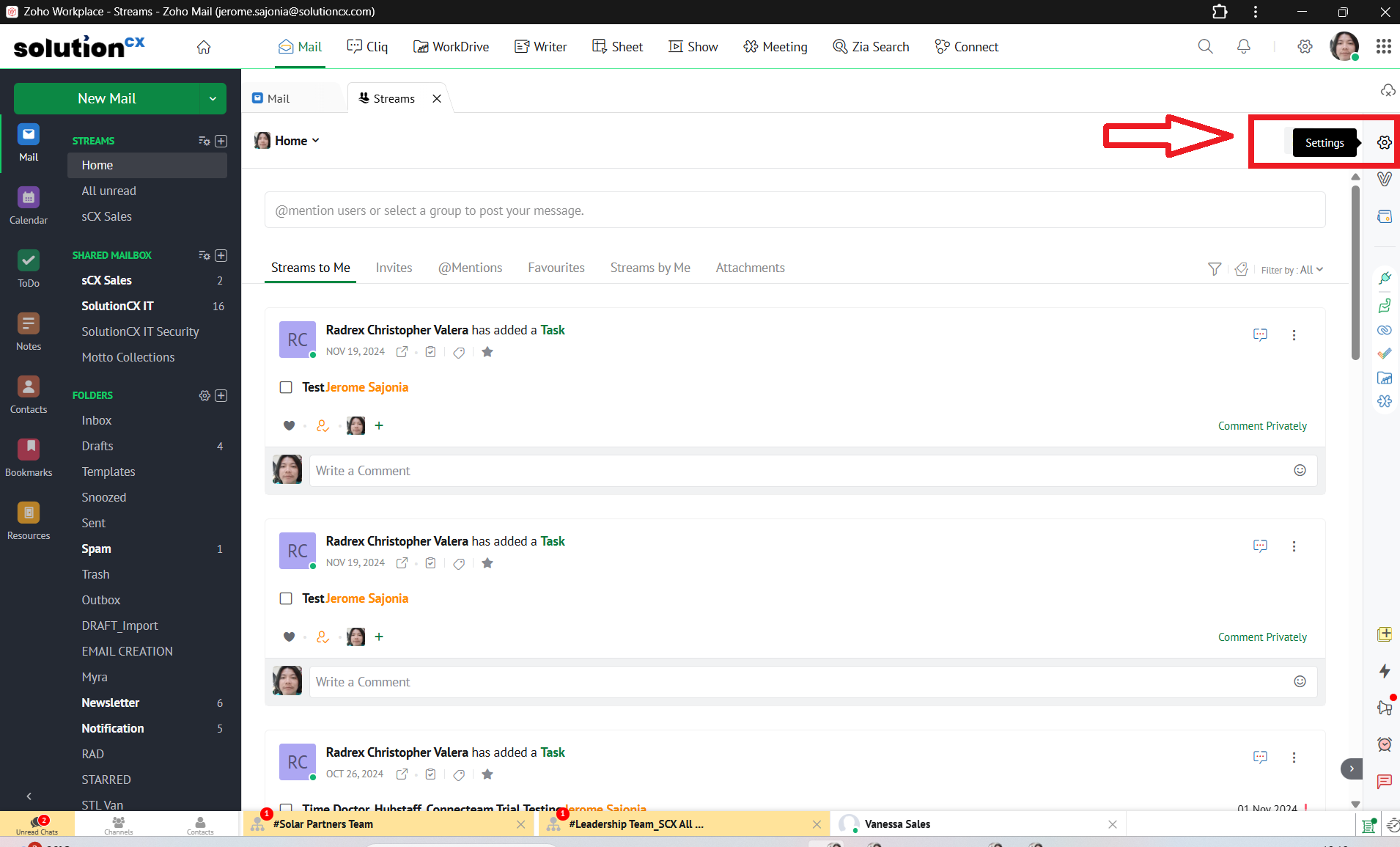
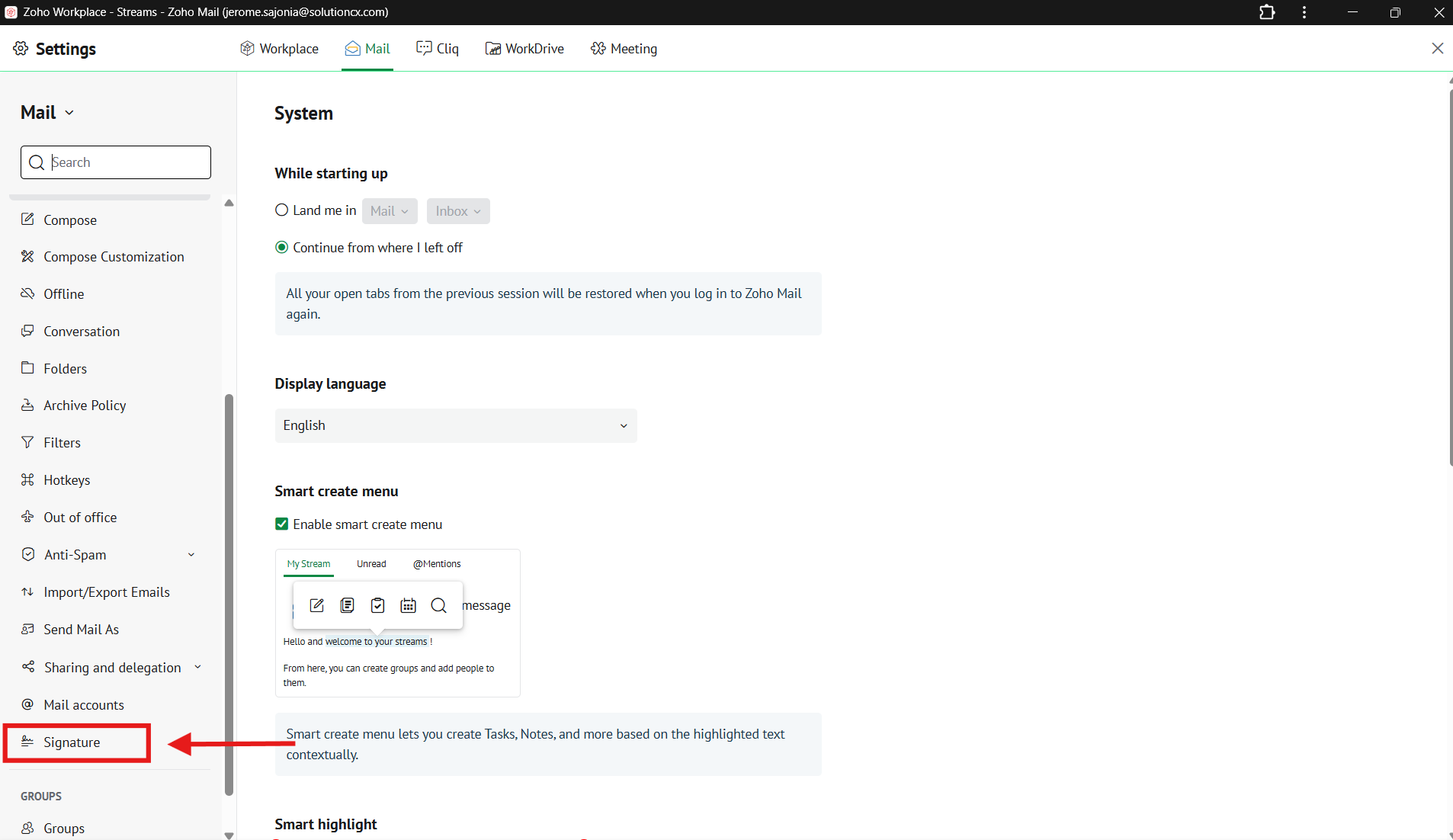
- Go to Signatures
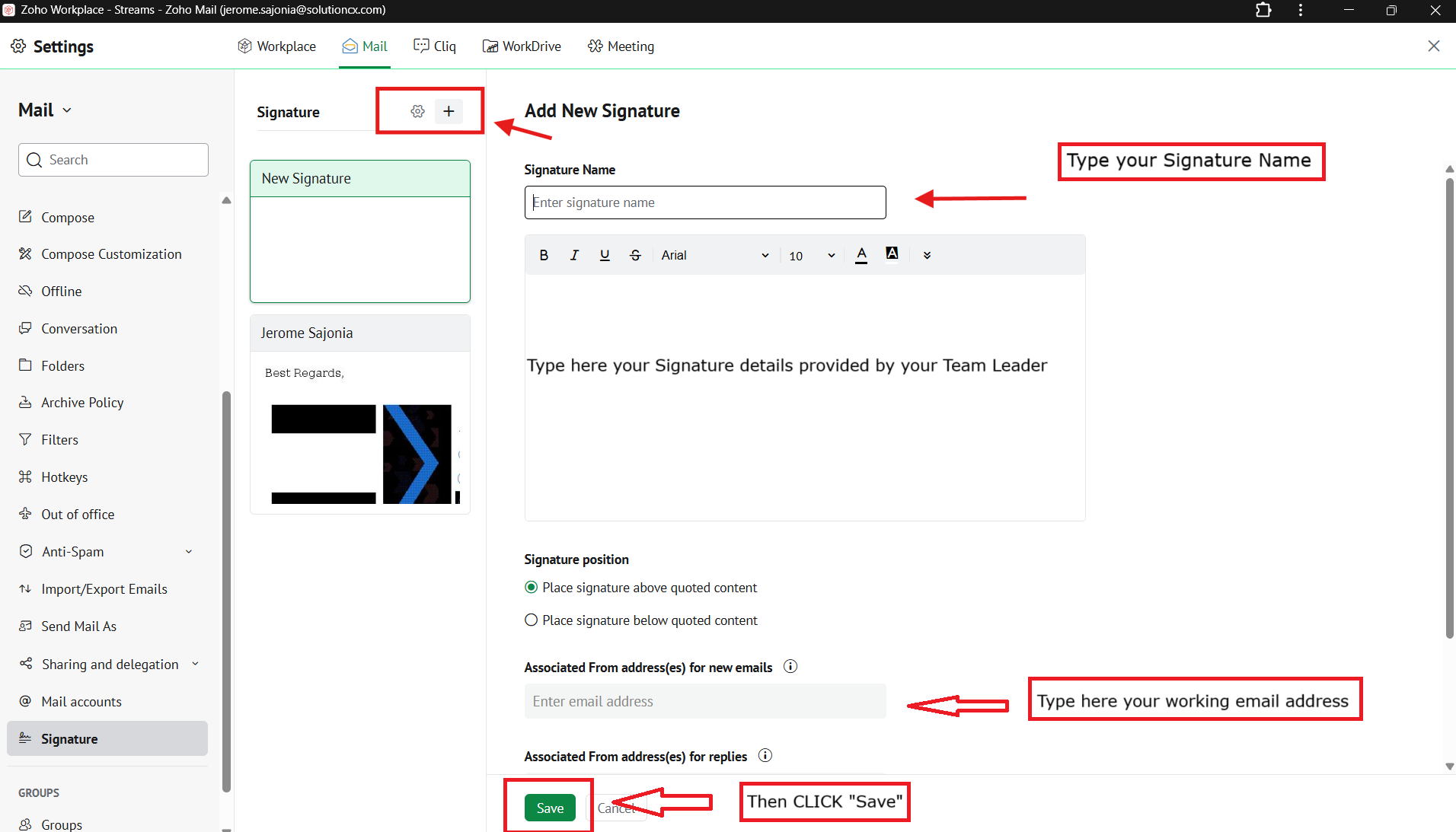
- Click the + icon to create a new signature and type all the details on your Signature.
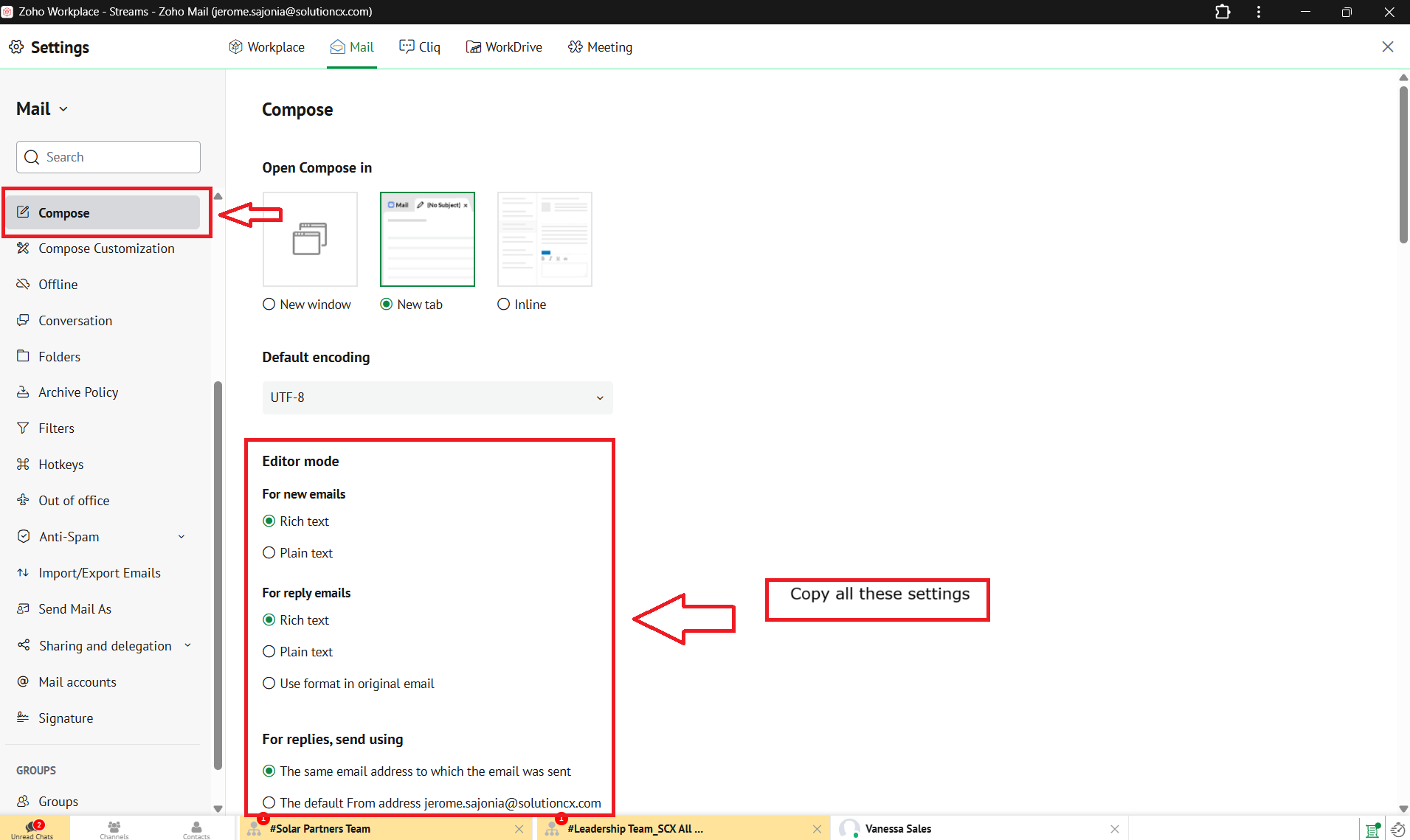
- Back to Mail settings, go to COMPOSE TAB and Copy all setting on the image below.
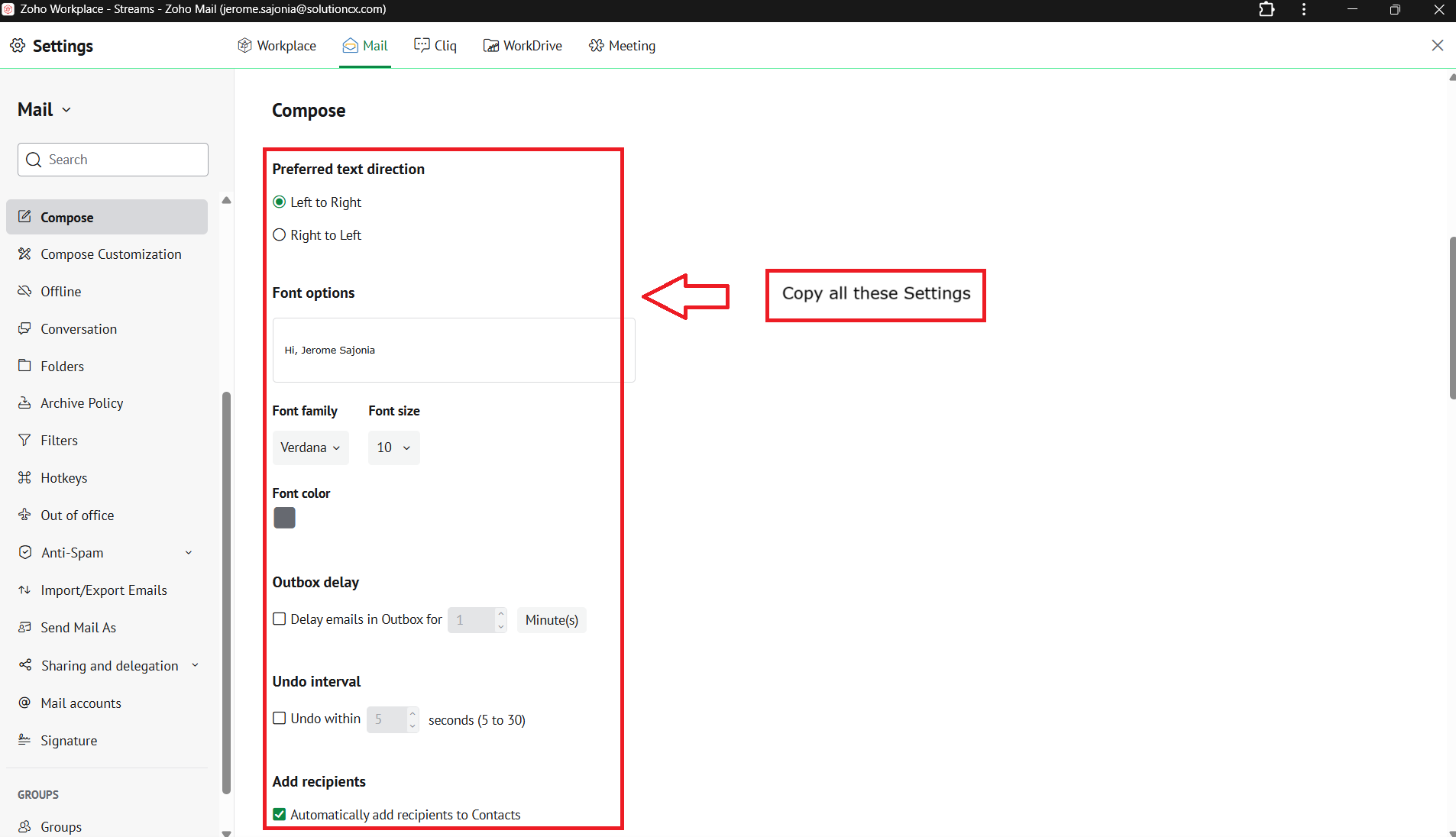
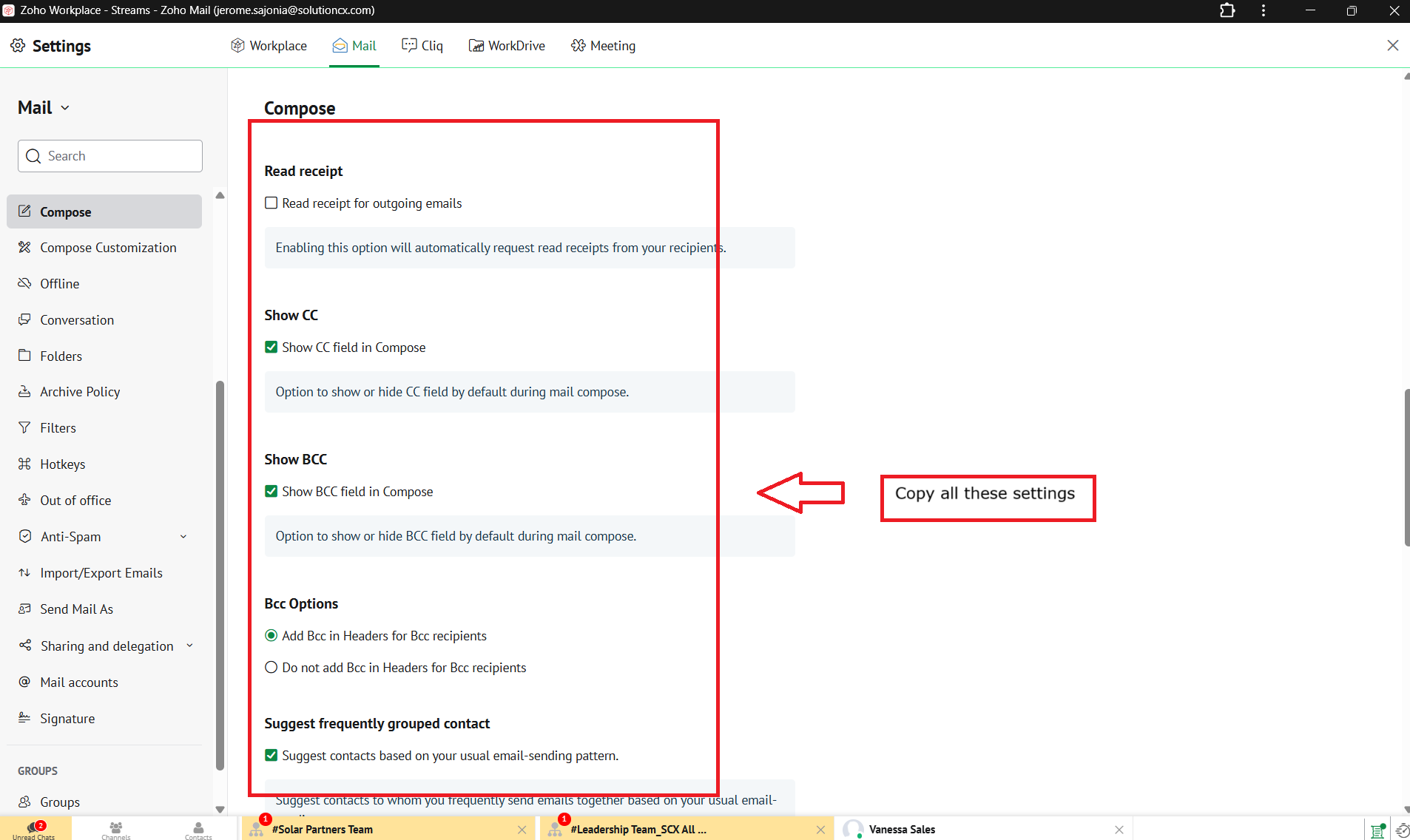
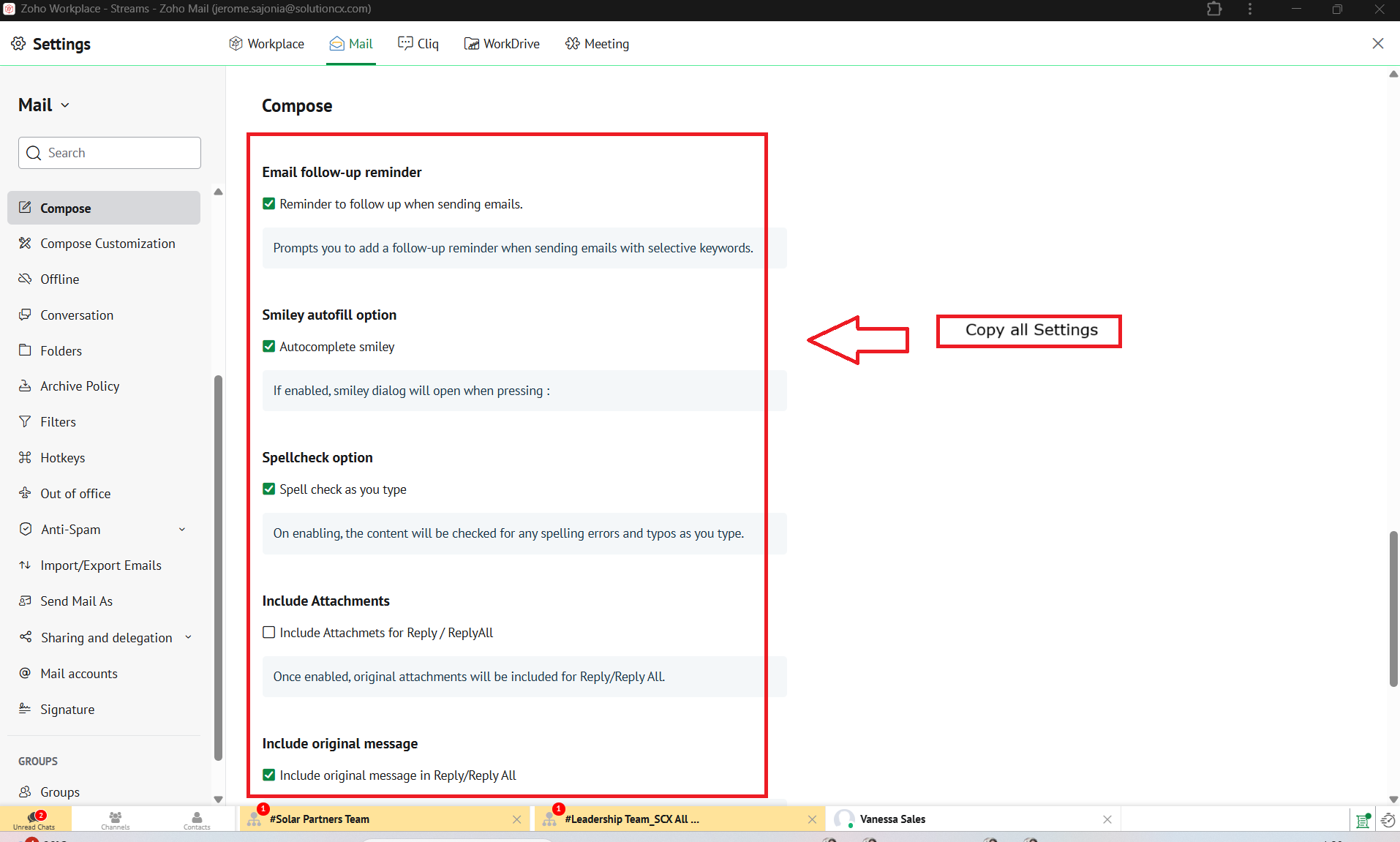
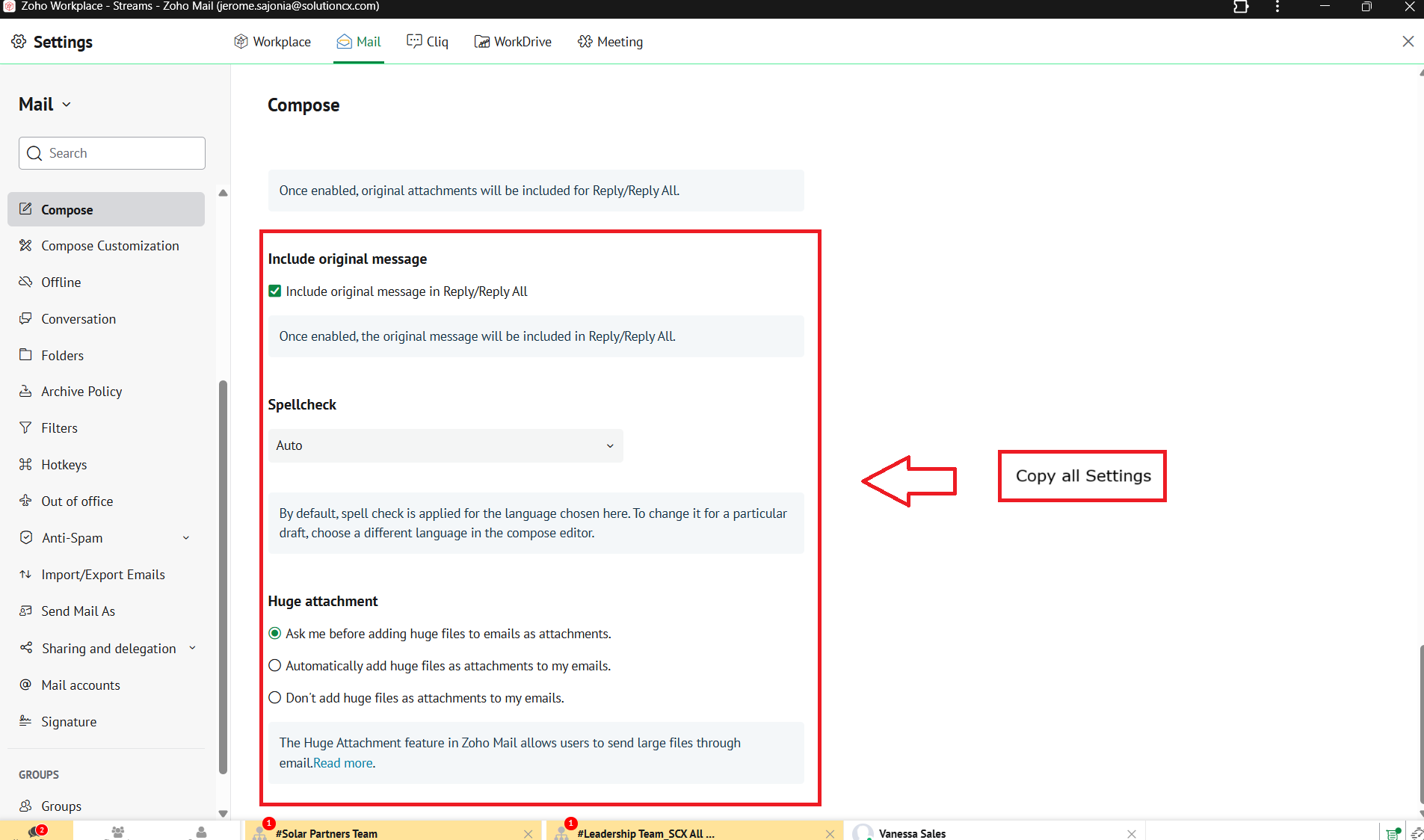
- You're all Set-up.
Related Articles
How to Filter Email
How to Filter Email? To create a specific email filter in Zoho Mail that automatically organizes or takes actions on incoming emails based on certain criteria, follow these steps: Steps to Create a Specific Email Filter in Zoho Mail Log in to Zoho ...
Zoho Mail Overview
Zoho Mail is a collaborative business communication platform for the modern workforce. It is a blend of classic email and modern collaborative tools such as comments, likes, and sharing. The new Zoho Mail Suite comprises the following applications ...
How to enable automatic Image Display in Zoho Mail?
How to enable automatic Image Display in Zoho Mail? To automatically view images in Zoho Mail without needing to manually click to display them, follow these steps to adjust your email settings: Enabling Automatic Image Display in Zoho Mail Login to ...
Creating your first ticket.
Creating a ticket in SolutionCX Heslpdesk is a straightforward process. Here are step-by-step instructions: 1. Go to SolutionCX Helpdesk: - Open your web browser and go to www.helpdesk.solutioncx.com/portal - At the bottom part of the page click ...
How to create To-do / Task in Zoho Mail?
To create a task or to-do in Zoho Mail (Zoho Mail's integrated task management system), you can follow these steps: Method 1: Using Zoho Mail's Tasks feature Log in to Zoho Mail: Open your browser and go to Zoho Mail. Log in using your Zoho ...